
You've exported the polished client video, uploaded it to a portal, and opened the link to check your work. It plays perfectly on your editing computer. Then the client reports a blank player, a missing audio track, or a file that won't open on a phone. The frustrating part is that the filename looks completely normal.
That failure usually isn't caused by the extension alone. Video file formats explained properly means separating the container, the codec, and the delivery pipeline, because each layer can introduce a different compatibility problem. A reliable workflow doesn't ask only whether a file is MP4 or MOV. It asks what the file contains, where it will play, how it will be delivered, and what happens when the viewer's device can't support the first option.
Table of Contents
- Why Your Video File Format Choice Still Matters
- Containers vs Codecs Explained in Plain English
- How MP4, MOV, AVI, MKV, and WebM Actually Compare
- Compression and Quality Tradeoffs That Affect Real Playback
- HLS Encoding and Modern Streaming Delivery
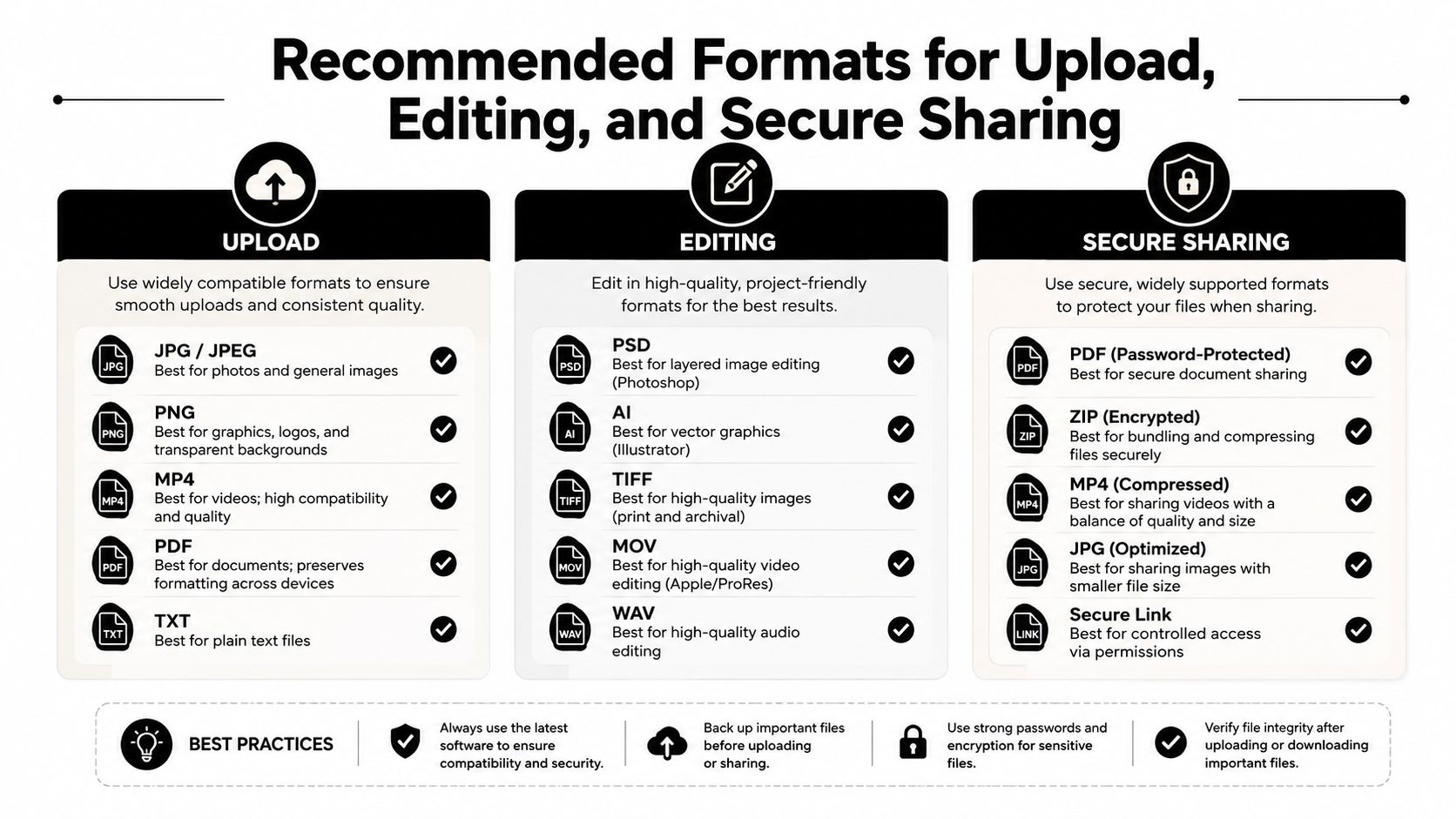
- Recommended Formats for Upload, Editing, and Secure Sharing
- A Practical Checklist for Choosing the Right Video Format
Why Your Video File Format Choice Still Matters
A marketing team can spend days refining a product video, only to discover that a client portal rejects the upload or that a browser refuses to play the file. The editor sees a normal-looking .mov or .mp4, but the platform sees a particular combination of video codec, audio codec, metadata, and packaging rules. Those details determine whether the file can be decoded, streamed, edited, or processed by another service.
The filename extension gives you only a partial answer. An MP4 file might contain H.264 video and AAC audio, or it might contain H.265 video that a recipient's browser or device handles differently. The same extension can therefore represent different practical outcomes, even when both files look similar in a file manager.
Practical rule: Choose a format for the destination, not for the computer that created it.
The distinction became important as digital video moved toward broad cross-device playback. MP4 became a major global container after MPEG-4 Part 14 was standardized in 2003, building on the ISO Base Media File Format, as described in this overview of video file formats. The container packages video, audio, subtitles, and metadata, while a codec performs the compression.
That separation is the central idea behind this guide. You'll see why MP4 is often the safest delivery choice, why MOV and MKV still have valuable roles, why WebM can be useful in browser-focused publishing, and why streaming systems increasingly require a collection of compatible renditions rather than one supposedly universal file. The aim is practical: fewer failed uploads, fewer confused clients, and fewer last-minute exports.
Containers vs Codecs Explained in Plain English
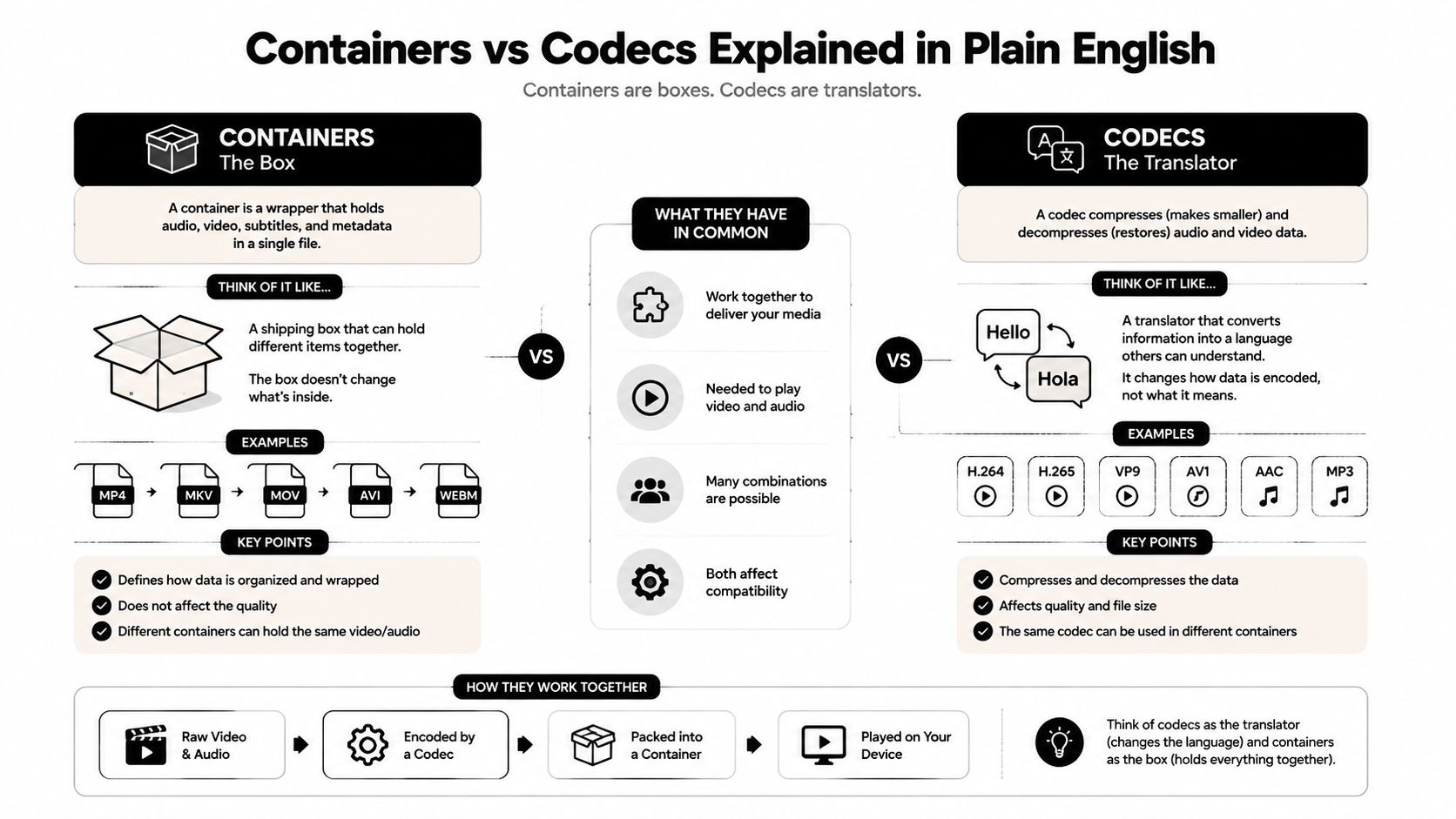
Think of a container as a shipping box and a codec as the method used to pack the contents efficiently. The box can hold several things together, such as the picture, sound, subtitles, timing information, and metadata. The packing method determines how the picture and sound are compressed and how a player decodes them.
In a video file, the container usually corresponds to the extension. MP4, MOV, MKV, AVI, and WebM are containers. H.264, H.265, VP8, VP9, AV1, and AAC are codecs or audio and video compression formats. A file can have a familiar container while carrying a codec that a particular player, editor, browser, or upload service doesn't support.
The box doesn't determine the packing method
Two MP4 files can differ sharply in size and quality because the codecs inside them may use different compression methods and settings. A high-efficiency codec may produce a smaller file at a similar visual quality, but the recipient still needs compatible decoding support. A broadly supported codec may be easier to play, even if it isn't the most space-efficient option.
The container also provides information that playback software needs. It can describe how streams relate to one another, where timing data sits, and whether the file includes subtitles or multiple audio tracks. A player isn't just opening “a video.” It's reading a structured package and attempting to decode each stream inside it.
Why this matters in production
Editors often prefer formats that preserve quality and support responsive timeline work. Web delivery favors combinations that browsers can decode efficiently. An archive may need multiple audio tracks, subtitles, chapters, or unusual codec support. A client-sharing platform may accept many source formats but convert them into a streaming format before playback.
That's why the phrase video format can be misleading. In practice, you're choosing a pairing:
- Container: The package that organizes video, audio, subtitles, metadata, and timing.
- Video codec: The compression system that stores and reconstructs the image.
- Audio codec: The compression system used for sound.
- Delivery method: The way a player receives the file, either as a downloadable object or through adaptive streaming.
If one part doesn't fit the target environment, the file may fail even though the extension appears acceptable.
How MP4, MOV, AVI, MKV, and WebM Actually Compare
The common containers serve different jobs. None is automatically the right answer for every stage of a workflow. The useful question is whether the container and its codecs fit the people, devices, software, and distribution system involved.
| Container | Best For | Typical Codecs | Compatibility Notes |
|---|---|---|---|
| MP4 | Broad web delivery, uploads, general sharing | H.264, H.265, AAC | Usually the safest general-purpose container, but codec support still matters |
| MOV | Apple workflows, camera originals, professional editing | ProRes, H.264, other production codecs | Strong in editing environments, less predictable for direct browser playback |
| AVI | Older Windows workflows and legacy files | Various older codecs | Legacy container with inconsistent modern web and device support |
| MKV | Archival storage, flexible multi-track files | H.264, H.265, VP9, AV1 and others | Flexible, but many browsers, portals, and transcoders don't treat it as a direct delivery format |
| WebM | Browser-centric web video | VP8, VP9, AV1 | Useful for modern web optimization, but not universally safe across every device or workflow |
MP4 is the practical default
MP4 became foundational because it combines a widely recognized container with codecs commonly supported by browsers, phones, editors, and media players. The container can carry H.264, H.265, and AAC, which makes it useful for general web delivery and client uploads. That doesn't mean every MP4 will play everywhere. An unusual codec, incompatible profile, or problematic audio stream can still cause trouble.
For a standard marketing upload, MP4 with H.264 video is often the least surprising starting point. It's also a convenient source for systems that generate additional streaming versions.
MOV belongs closer to production
MOV is strongly associated with Apple software, cameras, and professional editing. A MOV containing ProRes can be a valuable editing or mastering file because production codecs prioritize image quality and editing responsiveness over compact web delivery. That same file may be too large or poorly suited to direct playback in a browser-based client portal.
Use MOV when the recipient needs to continue editing or when the file is part of a production pipeline. Export a delivery version for viewers instead of assuming the editing master should also be the playback file.
AVI is mostly a compatibility warning
AVI still appears in older archives, Windows applications, and inherited client libraries. It can contain different codecs, so the extension doesn't tell you exactly how the file will behave. Modern upload systems may accept it as an input while converting it to another format, but direct browser playback is a less dependable use case.
If you receive AVI, preserve the original when it matters, then create a delivery copy suited to the target platform.
MKV and WebM solve narrower problems
MKV is valued for flexibility. It can accommodate varied codecs, multiple tracks, subtitles, and other features, which makes it useful for archival or internal storage. That flexibility also creates friction, because web players and automated processing systems often expect MP4, HLS, or CMAF-style outputs.
WebM fits browser-centric workflows and commonly carries VP8, VP9, or AV1. It can be an efficient choice for a controlled web environment, but agencies and consultants should test the actual viewer journey. A format that works in one desktop browser may still need a fallback for phones, embedded players, secure portals, or downstream systems.
Compression and Quality Tradeoffs That Affect Real Playback
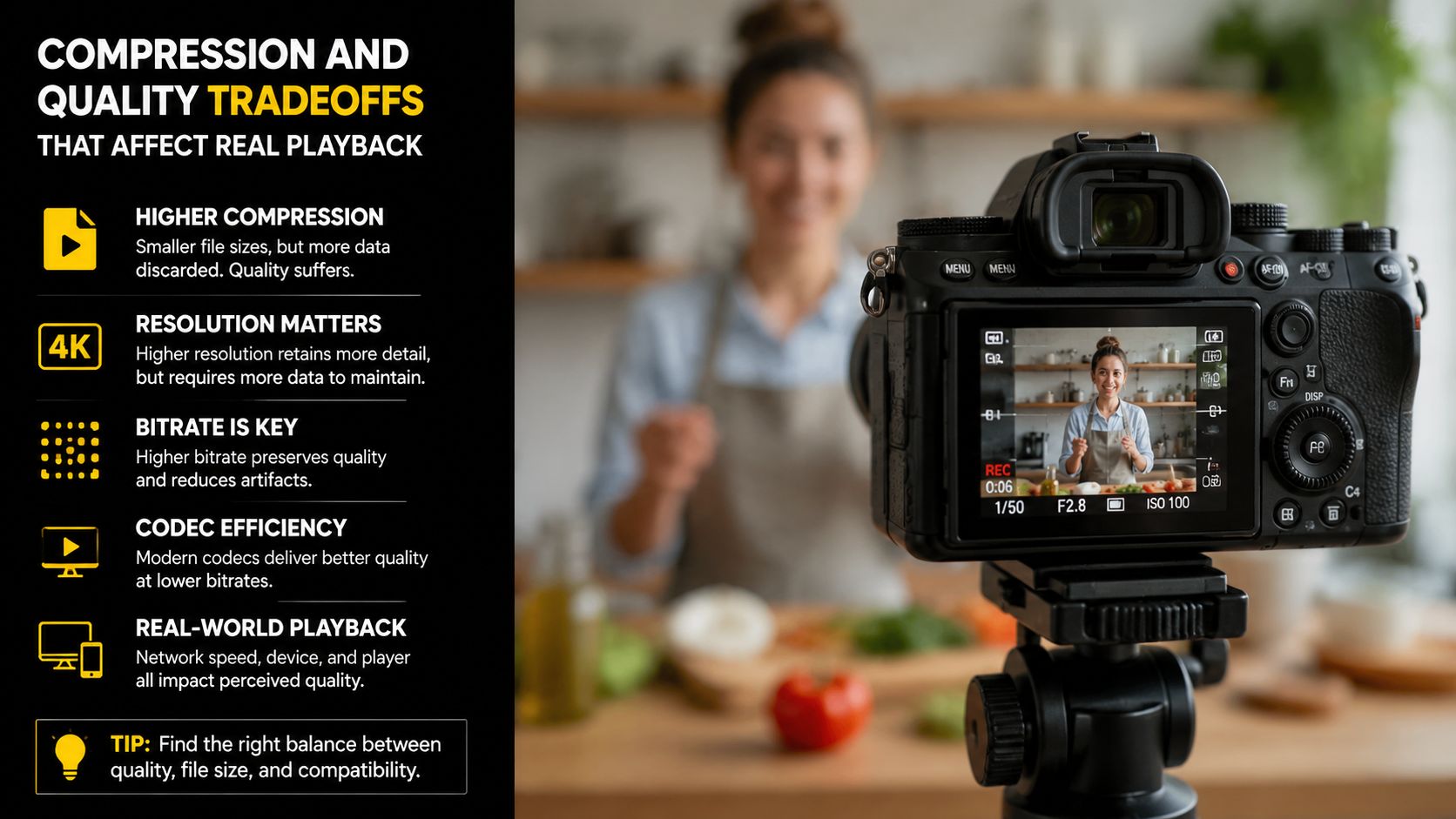
Compression changes the practical behavior of a video. It affects file size, image detail, decoding load, upload time, and the likelihood that a browser or device can play the stream without assistance. The codec does this work. The container organizes the result.
H.264 shaped modern delivery because the standard was designed to provide about a 3:1 improvement over MPEG-2 in compression efficiency, according to this H.264 technical presentation from the ITU. That improvement helped make comparable video more practical to stream and share without requiring the bandwidth associated with older compression approaches.
Smaller doesn't always mean safer
Newer or more efficient codecs can reduce storage and delivery demands, but efficiency introduces tradeoffs. Some devices decode certain codecs more easily than others. Some browsers support a codec only in particular containers. Some editing applications handle a compressed delivery file poorly, even if a media player opens it without complaint.
A small AV1 or H.265 file can therefore create more operational work than a larger H.264 file. You may need compatibility testing, alternate renditions, and a fallback path. Licensing and platform policies can also affect the decision, so the most efficient codec in isolation isn't automatically the most efficient choice for the whole workflow.
Quality depends on more than the extension
Visual quality depends on the source, codec, compression settings, resolution, frame rate, and the complexity of the scene. Fast movement, fine textures, gradients, and dark areas expose compression problems quickly. A container can't restore detail that the codec discarded.
If a file is too large for the intended handoff, review this guide on how to reduce video file size, but don't optimize by chasing the smallest possible output. Export a version that keeps acceptable image and audio quality while matching the playback environment.
The useful target isn't the smallest file. It's the smallest file that the intended audience can decode, stream, and understand without visible damage.
For professional work, keep a high-quality source or mastering file separate from delivery exports. That lets you create a broadly compatible copy without permanently replacing the version you may need for future edits, subtitles, reframing, or platform-specific versions.
HLS Encoding and Modern Streaming Delivery
A downloadable MP4 and an adaptive streaming presentation solve different problems. A single file asks the viewer's device to receive and decode one asset. HLS, by contrast, delivers a playback presentation that can use different segments or renditions as network and device conditions change.
Apple's HLS authoring specification for Apple devices allows video encoded as H.264/AVC, HEVC/H.265, Dolby Vision, or AV1. The packaging requirement matters: H.264 segments can use fragmented MP4, known as fMP4, or MPEG transport streams, while HEVC segments must use fMP4.
Packaging is part of compatibility
A valid codec isn't enough if the delivery pipeline expects another container structure. A player may support HEVC decoding but still fail if the stream isn't packaged in the form required by that HLS workflow. This is one reason teams should test the complete playback path, not just open the exported file locally.
fMP4 is the modern route for HEVC HLS delivery and an important part of adaptive streaming workflows. MPEG transport streams remain relevant for legacy HLS pipelines, particularly where older implementations depend on them. The choice belongs to the streaming system, not just the export dialog.
Think in renditions, not one master
Streaming platforms commonly create multiple versions so the player can select an appropriate stream for the viewer's connection and device. That means the uploaded source is often an input to a pipeline, not the final object that every viewer receives.
A delivery pipeline typically needs to handle:
- Source ingestion: Accept the production file without forcing the editor to master in a web format.
- Transcoding: Create compatible video and audio versions for the target playback environments.
- Packaging: Place the encoded streams into HLS-compatible segments and playlists.
- Player delivery: Serve the presentation through a player that understands the manifest and can switch renditions.
- Testing: Confirm playback on the browsers, phones, portals, and networks that matter to the audience.
For a deeper explanation of the viewing experience, see this guide to playing HLS streams. The important operational shift is simple: you're no longer asking, “Which extension should I send?” You're asking, “Which source can this pipeline ingest, and which packaged streams will the viewer receive?”
Recommended Formats for Upload, Editing, and Secure Sharing
A sensible workflow uses different files for different jobs. The editing master should protect future work. The upload copy should travel cleanly through ordinary platforms. The viewing pipeline should handle compatibility rather than making every recipient troubleshoot a codec.
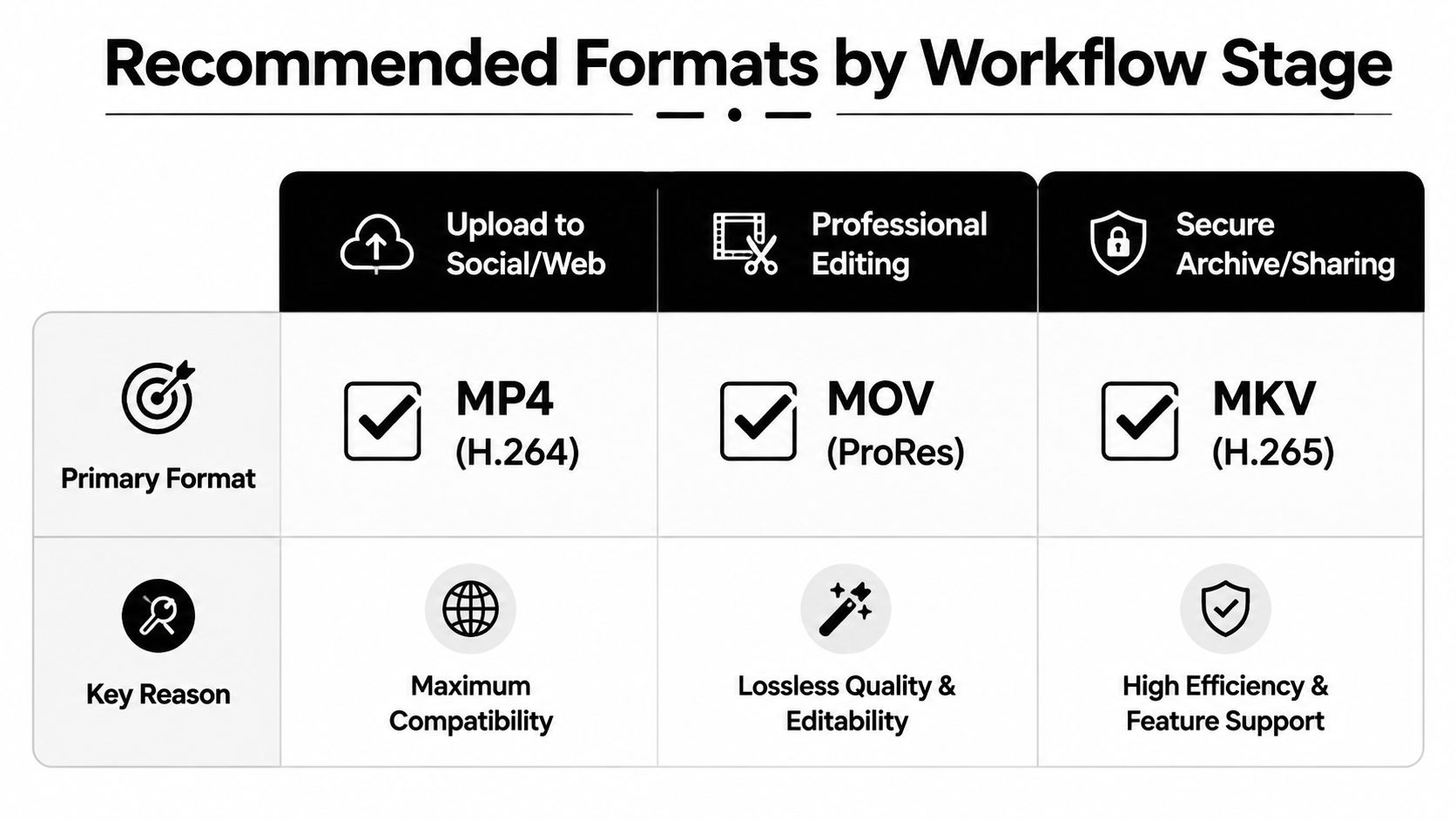
For broad uploads, start with MP4 containing H.264 video and compatible audio, unless the destination publishes a more specific requirement. That combination is widely recognized across web and device ecosystems, and it gives many services a predictable input for transcoding. Confirm the actual platform rules before exporting, especially if the video includes multiple audio tracks, subtitles, transparency, or unusual frame characteristics.
Keep production and delivery separate
For editing and mastering, MOV with a professional editing codec can be more appropriate than a compact delivery file. Editors need responsive scrubbing, clean re-exports, and enough retained quality for later revisions. A compressed web file may play perfectly but still be a poor source for serious post-production.
For archival storage, MKV can make sense where flexibility, multiple tracks, subtitles, or codec variety matter. Don't assume that an archive container should also be the file you send to a browser. Preserve the master, then create a controlled delivery version.
Treat secure sharing as a playback service
A secure client review workflow has requirements beyond file compatibility. The recipient may use a phone, a locked-down work computer, or a browser that doesn't support the exact codec you exported. A service that accepts MP4, MOV, AVI, MKV, and WebM and automatically encodes uploaded files to HLS can separate source-file handling from viewer playback.
vitelnk is one option in that category. It supports those source containers, creates HLS playback, and provides controls such as passwords, expiry windows, single-use access, optional viewer registration, and per-recipient links. Its analytics include timestamped view logs, watch time, completion rates, and heatmaps, while post-play actions can connect viewers to tools such as Calendly, Stripe, proposals, or another URL.
That approach prevents the client from downloading a production master just to watch a draft. It also gives the sender a way to manage access and understand whether the intended recipient watched the material. For output quality and display sizing, use a delivery decision such as HD or SD based on the viewing context, not on habit.
A Practical Checklist for Choosing the Right Video Format
Before exporting, upload, or sending a video, answer these questions:
- Where will it play? Name the browsers, phones, apps, editors, portals, or streaming services involved.
- What does the container hold? Check the video codec, audio codec, subtitles, metadata, and track structure.
- Does the destination transcode? If it creates HLS or another adaptive presentation, treat your file as a source rather than the final playback asset.
- Does the recipient need to edit? Send an appropriate production or mastering file, not only a compressed viewing copy.
- Does the viewer need secure access? Use passwords, expiry, registration, or recipient-specific links where the material is sensitive.
- What's the fallback? Test an alternative codec or rendition when browser, device, or platform support is uncertain.
- Have you tested the complete path? Upload the file, open the link, and check playback on the devices your audience uses.
The reliable decision is rarely “MP4 versus MOV.” It's the combination of container, codec, packaging, player, access controls, and fallback behavior. Once you evaluate the whole pipeline, format choices become deliberate instead of reactive.
vitelnk lets you upload common video containers, convert them into HLS playback, and share them through controlled links with access settings and engagement analytics. Visit vitelnk to start a free trial and test a delivery workflow that keeps compatibility and viewer control in the same process.
